AP Lab Utility · free & open source
Hotkey your modules.
Put any module in your patch on a number key. Jump to it in one press, then turn its knobs and press its buttons straight from the keyboard. It gives mouse-and-keyboard players a hands-on, Eurorack-like feel on a computer, and gets you around a big rack fast.
Hotkey works with every module in Rack. It makes no sound and has no jacks, so it costs nothing on the audio thread.
Modules on number keys
Point at a module and press Alt + 1. Now Shift + 1 jumps straight back to it, wherever you are in the rack.
Hands on the knobs
Hold a number and turn your dial or mouse wheel: only that knob moves. The letter row presses buttons. One control at a time, like reaching into a case.
Get around fast
10 slots per group and up to 99 groups. Flip between groups and pages of knobs without hunting with the mouse.
Your setup
Laptop, numpad or two-handed layouts, re-learnable keys, extra macropad dials, and MIDI controllers or gamepads if you have them.
Try it with your keyboard
A pretend rack with three plain modules, and Hotkey’s ten slots shown above it. Click inside it, then use your keys the way you would in Rack. Nothing here makes sound; it just shows what Hotkey does.
This hands-on demo needs a computer keyboard. Open this page on a computer to try it.
Then put DELAY on Alt + 2 and jump between them with Shift + 1 and Shift + 2. Hold two numbers to turn two knobs at once. If Alt + 1 switches your browser tab, click a module and then a slot button instead. Needs a computer keyboard.
Quick start in four keys
- Alt + 1
Point at a module and press Alt+1 to hotkey it to slot 1.
- Shift + 1
Select slot 1. The module gets an amber outline, and badges show which key does what.
- Hold 1 + turn
Turn your dial, scroll the mouse wheel, or tap = / -. Only that knob moves.
- Q … P
The letter row presses buttons 1–10.
New here? Right-click Hotkey › It works out what your dial or wheel sends and asks which key layout you want.
Playing
| What | How (Standard layout) |
|---|---|
| Turn knob N | Hold 1…0 + dial / wheel / = -. One click = 1% of the range; stepped knobs move one step. |
| Push a push-encoder | Hold its number + press the dial (End) or click the mouse wheel |
| Reset a knob | Hold its number + double-tap the push |
| Press button N | Q…P (momentary buttons are held as long as the key is) |
| Next page | Num / (modules with more than 10 knobs) |
| Sensitivity | Num + / Num - (hold a number to change that knob only) |
| Lock, so you can type | Scroll Lock or the LOCK button |
Slots and groups
- 10 slots per group, up to 99 groups. Alt + slot key assigns the module under the mouse (over empty space, it clears the slot). Shift + slot key selects it.
- Shift + - / Shift + = switch groups, Alt + = makes a new group, and Alt + Delete clears the group (Ctrl + Z undoes it).
- Slots and groups are saved with the patch. Your keys, colours and sensitivity are saved once for all patches.
Make it yours
- Layouts: Standard (two hands), Laptop (no numpad) and Numpad (one hand, safe alongside Rack’s computer-keyboard MIDI). Every key can be re-learned in .
- Renumber: hold a number + Alt-click a control. This applies to every module of that type.
- Push links: hold a number + Ctrl+Alt-click the button that should be that knob’s push. Push encoders link themselves.
- Own key: Shift+Alt-click any control, then press a key.
- Highlights and colours: turn each overlay on or off, including a colour-blind-safe set.
Extra dials
Some keyboards and macropads have 2, 3 or 4 knobs. Set each knob to send its own keys in the keyboard’s software (VIA, QMK and similar); F13–F24 are ideal, because nothing else uses them. Then go to right-click › : turn the knob right, then left, then press it.
Extra dial N turns knob N of the selected module directly, with no number to hold. Each dial can instead turn the held knob, or work as navigation, with its own speed and invert.
Panel
| Control | What it does |
|---|---|
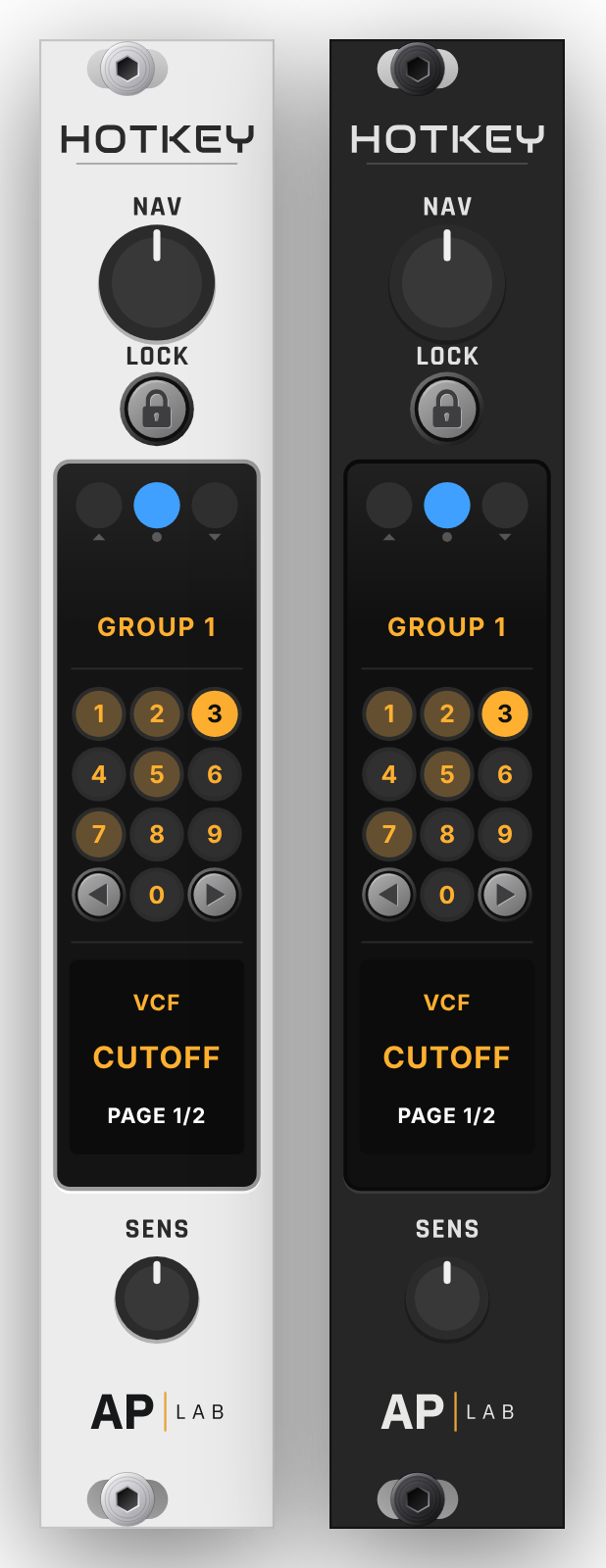
| NAV | Picks the next or previous module in the group. Its push is next page. |
| ‹ › | Previous or next group. |
| SENS | Overall sensitivity. |
| LOCK | Ignore all of Hotkey’s keys. The padlock glows amber while locked. |
The screen shows the dial’s up, push and down, the 10 slots, the group and the page. The panel follows Rack’s light / dark panel setting.
Game controller and MIDI
- Gamepad: plug in an Xbox or PlayStation style controller. By default the sticks turn two knobs, A B X Y press buttons, the bumpers pick modules, the triggers switch groups, and the d-pad flips pages and moves the sticks along the knobs. Remap it all in the menu.
- MIDI controller: map your controller’s knobs and buttons to roles (knob 3, button 5, slot 2, next page…), so the same physical knob plays knob 3 of whatever module is selected. Learn detects absolute and relative encoders, and pickup stops jumps.
Good to know
- Only one Hotkey per patch is active. Extra copies wait on standby.
- Turns, button presses and setup changes go into Rack’s undo (Ctrl + Z).
- Mac: Ctrl means Cmd and Alt means Option. Many Mac keyboards have no End, numpad or Scroll Lock, so use the Laptop layout, re-learn the keys you’re missing, and use the panel’s LOCK button.
- Inside a DAW (Rack Pro as a plugin), the host may take some keys first.
- “My dial does nothing”: run . If Rack can’t see the dial at all (it sends volume keys), set it to scroll or to normal keys in the keyboard’s software.
Hotkey is free and open source (GPL-3.0-or-later). Questions or bugs: support@aplabaudio.com